The 20-20-20 Rule for Screens: A Tiny Habit That Can Save Your Eyes (and Head)
Staring at screens all day? The 20-20-20 rule is a simple reset for tired eyes—plus small tweaks to lighting and posture that help prevent headaches.
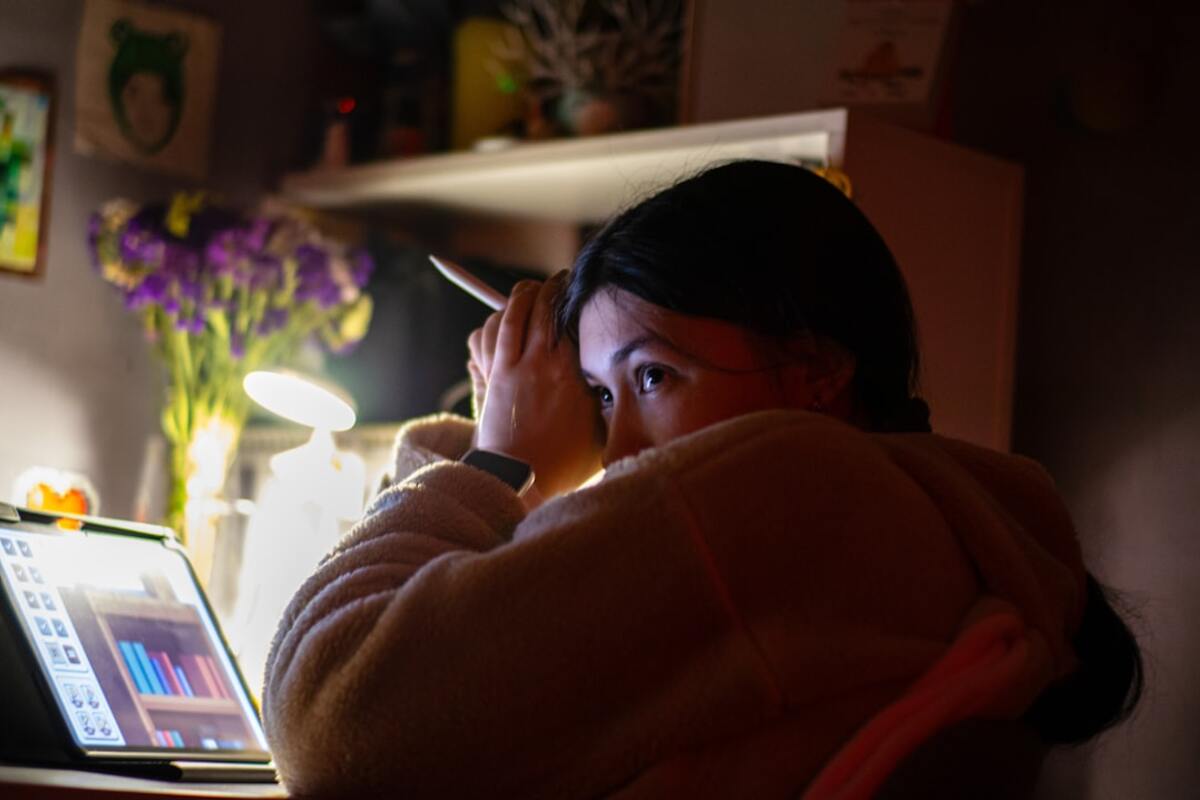
Why screens make your eyes feel tired (even if your eyesight is “fine”)
Imagine you’re holding a small weight with your arm bent at the same angle for hours. You might be strong enough to do it, but eventually the muscles start to protest—not because you’re weak, but because you’re stuck in one position. Screen-related eye strain works a lot like that.
When you look at a phone, laptop, or monitor, your eyes do three things for long stretches:
- They focus up close (your focusing system stays “contracted” for near work).
- They aim inward (both eyes converge slightly to land on the same close target).
- They blink less (especially during reading, spreadsheets, gaming, or intense scrolling).
That combination can lead to the classic “digital eye strain” bundle: dryness, burning, watery eyes, blurry vision that comes and goes, and headaches that show up like an uninvited meeting request.
Here’s a relatable scenario: You’ve been on back-to-back video calls. You’re not squinting, the text is readable, and your prescription is current. Yet by mid-afternoon, your eyes feel gritty, and your forehead feels tight. That’s often not a “vision problem.” It’s a fatigue problem caused by sustained near focus, reduced blinking, and sometimes glare or awkward posture.

The 20-20-20 rule: the easiest reset that actually fits real life
The 20-20-20 rule is simple:
Every 20 minutes, look at something about 20 feet away for 20 seconds.
It’s not a magical number set. It’s a practical reminder to give your focusing system a short break and to encourage normal blinking. Think of it as the eye version of standing up and stretching—small, frequent resets instead of one huge fix at the end of the day.
What counts as “20 feet”? Roughly across a room, out a window, down a hallway—anything clearly farther than your screen. If you can’t estimate distance, just pick the farthest point you can see and relax your gaze.
What to do during the 20 seconds:
- Let your eyes “unclench.” Instead of staring hard, soften your focus like you’re daydreaming (but with your eyes open).
- Blink on purpose. Try 5–10 slow blinks. This helps spread tears across the surface of the eye.
- Move your eyes a bit. Look far-left, far-right, up, down—gently. This can reduce that “frozen stare” feeling.
How it looks in a real workday: You’re editing a document. After finishing a paragraph, you lean back, look out the window at a building/tree/cloud for 20 seconds, blink a few times, then continue. Done. No special equipment, no complicated routine, no need to leave your desk.
If you always forget: Pair the rule with a trigger you already have. Examples:
- Every time you hit “send” on an email
- Every time a meeting ends
- Every time you refill your water
- Every time you switch tasks (tab change = eye break)
You can also use a gentle timer, but the goal is not to turn your day into a stopwatch. If you miss a few breaks, you haven’t failed—you’re just practicing a preventive habit.
Quick setup changes that prevent strain before it starts
The 20-20-20 rule is the “micro-break,” but your environment matters just as much. Many people blame screens when the bigger issue is how the screen fits into the room—and how your body is positioned around it.
1) Put your screen in a friendlier place
A common strain pattern is “eyes up, neck forward,” especially on laptops. When your screen is too low, you tend to crane your neck and open your eyes wider—both can increase discomfort.
- Screen height: Aim for the top of the screen around eye level (or slightly below), so your gaze naturally angles a bit downward.
- Screen distance: About an arm’s length is a good starting point. If you have to lean in, increase font size instead.
- Two-screen setups: Put the main screen directly in front of you. Constant side-glancing can contribute to headaches and neck tension that feels like “eye strain.”
2) Make text bigger than you think you need
If you’re squinting even a little, you’ll “over-focus” and blink less. A surprisingly effective prevention move is simply increasing the default font size and zoom.
- Try 110–125% zoom on laptops.
- Increase line spacing slightly for long reading sessions.
- Prefer dark text on a light background for documents; for nighttime, try a dimmer screen rather than ultra-bright white pages.
3) Reduce glare like you’d reduce noise
Glare forces your eyes to work harder, even if you don’t consciously notice. It’s like trying to have a conversation next to a humming air conditioner—you can do it, but you’ll feel drained.
- Window placement: If possible, keep windows to the side of your screen, not directly behind or in front of it.
- Lighting: Avoid a bright lamp pointing at the screen. Use softer, indirect light.
- Clean the screen: Smudges and dust increase scatter and “haze,” making you strain without realizing.
4) Match your screen brightness to the room
If your screen looks like a glowing billboard in a dim room, your eyes constantly adapt between bright and dark. If it’s too dim in a bright room, you strain to see details. A quick check: open a white page—if it feels like a light source, dim it; if it looks gray and hard to read, brighten it.
5) Dry eyes: the hidden driver of screen discomfort
Many “screen headaches” start with dryness. When you concentrate, blink rate can drop significantly, which means tears evaporate and your eyes feel scratchy or watery (yes—watery eyes can be a dryness signal).
Two tiny habits help:
- The blink reset: During your 20-second break, do 5 slow blinks, fully closing your eyelids.
- The humidity check: If you’re near a fan or vent, redirect airflow away from your face. Air movement speeds tear evaporation.
| Symptom | Common screen-related cause | Quick prevention tweak |
|---|---|---|
| Gritty, burning, or watery eyes | Reduced blinking + drying airflow | 20-20-20 + 5 slow blinks; move fan/vent away |
| Headache around forehead/temples | Long near-focus + glare + neck tension | Increase font/zoom; reduce glare; screen at eye level |
| Blurry vision that comes and goes | Focusing system “stuck” up close | Look far away for 20 seconds; step back from screen |
| Soreness behind the eyes | Over-focusing and continuous close work | Micro-breaks; ensure adequate lighting; avoid squinting |
6) Don’t ignore posture: your eyes ride on your neck
It’s hard to separate “eye strain” from “upper-body strain” because they often travel together. When your head drifts forward toward the screen, you may tense the muscles around your scalp and jaw. That tension can feel like pressure behind the eyes.
- Bring the screen closer only if you also increase text size and keep your head stacked over your shoulders.
- Rest your forearms on the desk/chair arms to reduce shoulder lift.
- If you use a laptop all day, consider a stand + external keyboard/mouse so the screen can rise without forcing your wrists into awkward angles.
Yes. Glasses/contacts correct vision, but they don’t stop reduced blinking, glare, or sustained close focus. The rule is about giving your focusing system and tear film a break.
Yes. Glasses/contacts correct vision, but they don’t stop reduced blinking, glare, or sustained close focus. The rule is about giving your focusing system and tear film a break.
You can do it quietly. While someone else is talking, look at a distant point for 20 seconds (not at your phone). Or use natural transitions: when screen sharing stops, when slides change, or when you sip water—pair that moment with a far look and a few blinks.
You can do it quietly. While someone else is talking, look at a distant point for 20 seconds (not at your phone). Or use natural transitions: when screen sharing stops, when slides change, or when you sip water—pair that moment with a far look and a few blinks.
They may reduce perceived glare for some people, but many cases of digital eye strain are driven by dryness, close focus, and poor ergonomics. Before buying anything, try the free fixes: bigger text, less glare, better screen height, and 20-20-20 breaks.
They may reduce perceived glare for some people, but many cases of digital eye strain are driven by dryness, close focus, and poor ergonomics. Before buying anything, try the free fixes: bigger text, less glare, better screen height, and 20-20-20 breaks.
Small warning signs that your setup needs attention
Prevention is easiest when you notice the early signals. Consider adjusting your habits if you regularly experience:
- Needing to rub your eyes by lunchtime
- Frequent re-reading of the same line because it “won’t focus”
- Headaches that fade on weekends or vacations
- Feeling better when you print something out (a clue that glare/contrast or distance is the issue)
When it’s not just screen strain
Most screen discomfort is manageable with habits and setup tweaks, but persistent or severe symptoms deserve attention. If you have sudden vision changes, significant eye pain, new flashes/floaters, or headaches with neurological symptoms (like weakness, confusion, or trouble speaking), seek urgent medical care. If your symptoms are steady and recurring, an eye exam can check for dry eye, prescription changes, and focusing issues that make screens harder than they should be.